
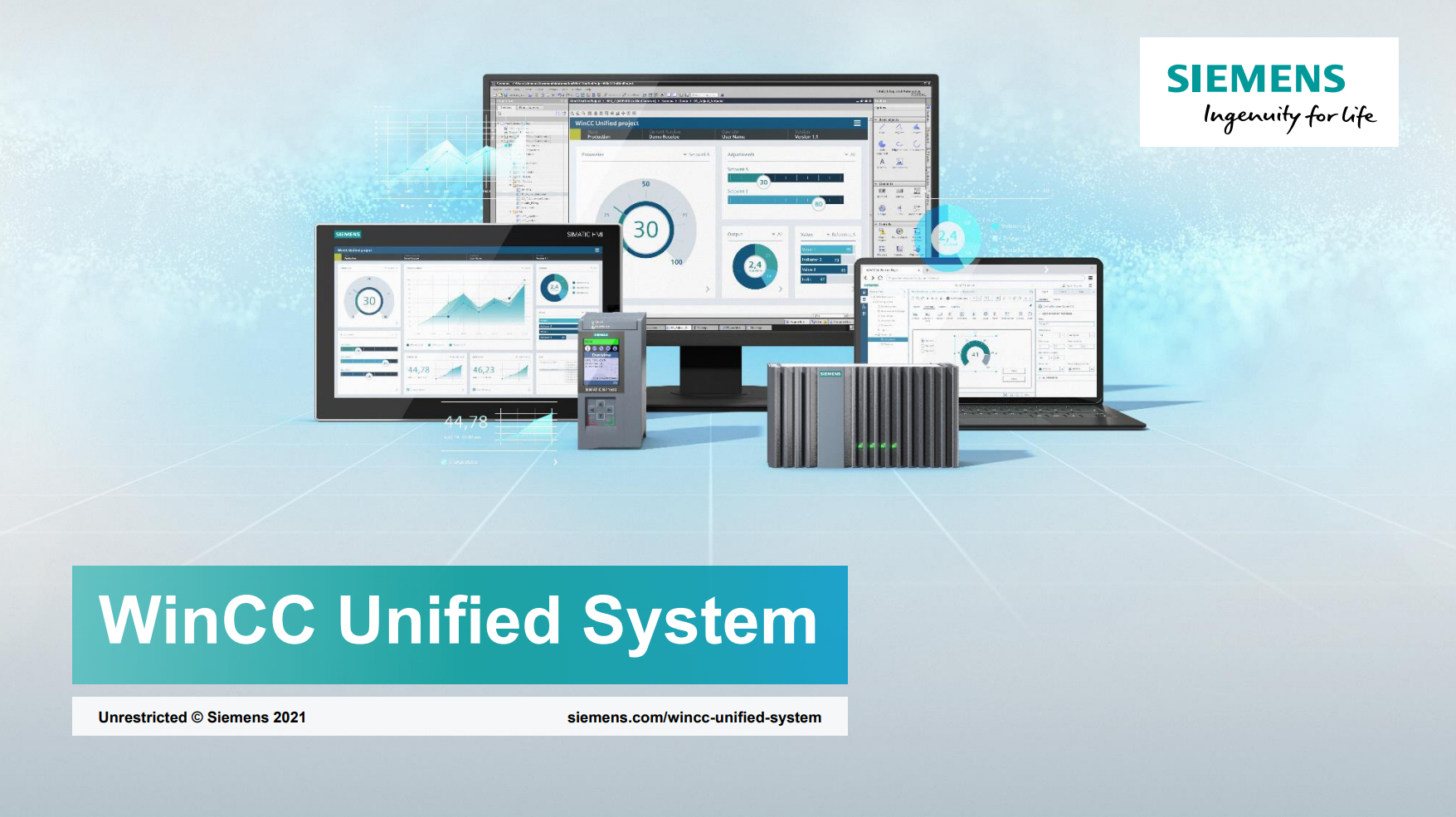
What is WinCC Unified?
WinCC Unified is Siemens’ next-generation SCADA and HMI platform designed for Industry 4.0 applications. It supports scalable and flexible visualization across devices—from small HMIs to large SCADA systems—using a modern, web-based interface.
Step 1: Prepare Your System
Before you begin installation, ensure your system meets the minimum requirements:
-
Windows 10 or later (64-bit)
-
At least 8 GB RAM (16 GB recommended)
-
Minimum 10 GB free disk space
-
Siemens TIA Portal V17 or newer (WinCC Unified is integrated here)
Step 2: Install TIA Portal and WinCC Unified
-
Download the software: Get the official TIA Portal installer including WinCC Unified from Siemens’ website or your Siemens distributor.
-
Run the installer: Follow the on-screen prompts. Choose the “Complete installation” option for all features.
-
Activate licenses: Use Siemens License Manager to activate the necessary licenses for WinCC Unified.
Step 3: Create a New WinCC Unified Project
-
Open TIA Portal.
-
Click Create new project, give it a meaningful name, and click Create.
-
In the project view, right-click Visualization and select Add new WinCC Unified Runtime.
-
Choose the target device (HMI panel, PC, or Web Runtime) according to your needs.
Step 4: Configure Your HMI Screens
-
Use the drag-and-drop editor to add buttons, indicators, and other controls.
-
Configure properties like colors, text, and behavior in the Properties panel.
-
Set up tags to link controls with your PLC variables for real-time monitoring and control.
Step 5: Connect Your PLC
-
Add your PLC device to the project if not already done.
-
Establish communication by configuring the interface (e.g., Profinet).
-
Link PLC variables (tags) to your HMI elements for seamless data exchange.
Step 6: Test and Deploy
-
Use the Simulate Runtime option to test your screens without hardware.
-
After verifying functionality, download the project to your HMI or SCADA runtime device.
-
Monitor and control your process live!
Tips for Beginners
-
Start simple: Build a basic screen and gradually add complexity.
-
Use Siemens’ online documentation and tutorials for extra help.
-
Keep your tags and screens organized for easier maintenance.